Find your first and last frost dates, then map them to exact weeks for starting seeds indoors, direct sowing outside, and transplanting vegetables with confi...
Veg Loom
October 17, 2026
By Maggie O'Connell
Top 5 Garden Planning Apps and Digital Calendars for Vegetable Growers
Compare 5 garden planning apps and digital calendars for vegetable growers, with a feature table covering notifications, backup options, login and offline use, plus spreadsheet approaches for sowing, transplants, successions, and harvests.

Maggie O'Connell
Maggie O'Connell is a lifelong gardener and the voice behind Vegloom, dedicated to helping people grow their own food regardless of their yard size. With over 15 years of hands-on experience in backyard agriculture, she specializes in raised bed gardening, organic soil building, and seasonal planting calendars. When she isn't writing, Maggie can usually be found tending to her sprawling heirloom tomatoes or experimenting with new compost recipes.
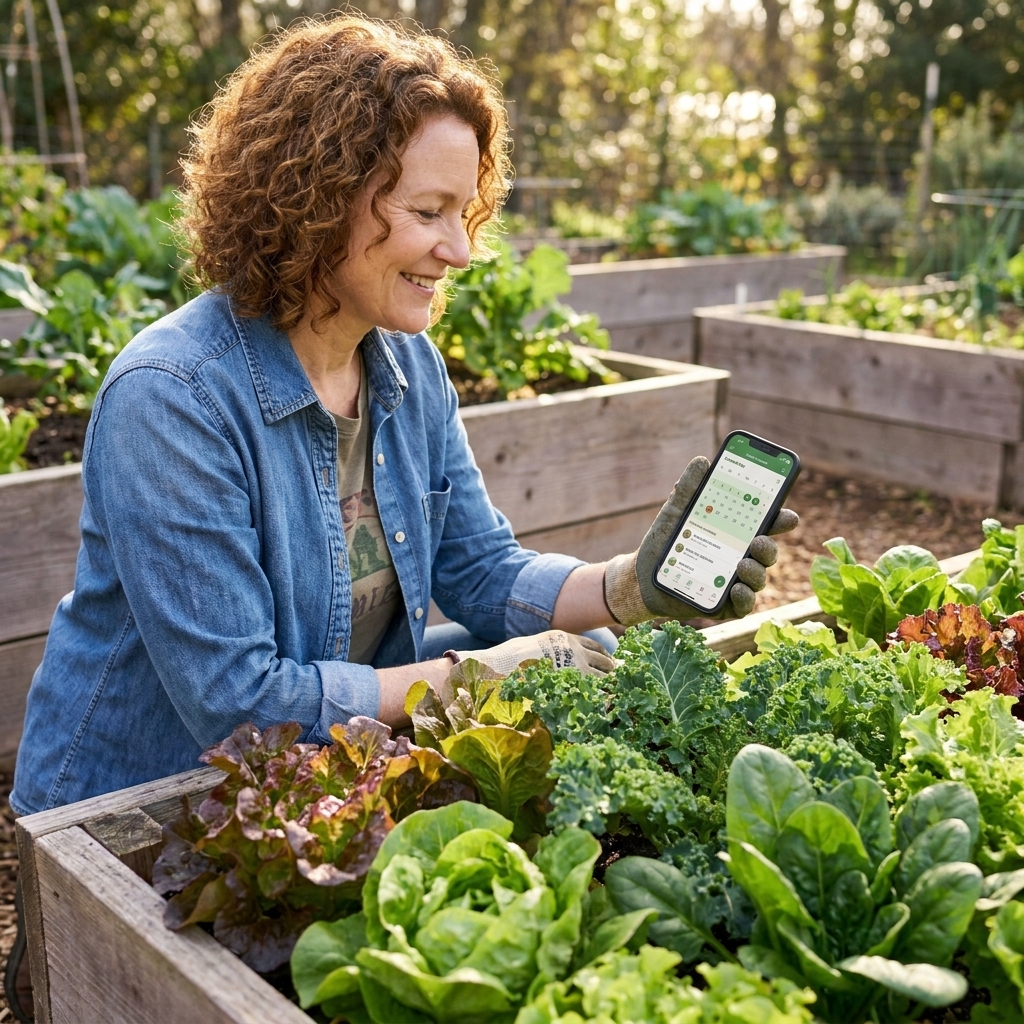
If you have ever found yourself holding a seed packet in April, squinting at the days to maturity, and thinking, Wait, did I start these already?, you are my people. Garden planning apps and digital calendars can save a ton of mental bandwidth, especially once you start doing successions, fall crops, or juggling more than one raised bed.
This comparison focuses on tools that help vegetable growers track the real stuff: last frost dates, sowing windows, transplant reminders, bed maps, crop notes, and harvest timing. I also include a couple of spreadsheet-based options for gardeners who want maximum flexibility without another app subscription.
One quick note on days to maturity: it is a helpful benchmark, not a promise. Temperature, day length, soil health, and how fast a plant gets established can all stretch or shrink that timeline. And no tool can truly know your microclimate, so treat any schedule as a strong starting point, then adjust to what your garden is doing.
How I compared these tools
This is a practical roundup based on publicly listed features and typical in-season needs for vegetable growers. Pricing and features change over time, but these tools have clear use cases and workflows, and that is what you are paying for.
Two things I prioritized heavily: (1) whether the tool makes you more consistent with timing and (2) whether you can get your data back out if you ever switch tools.
What a good planner does
Before we get into specific apps, here is what I look for when I am choosing a tool for my own garden planning.
- Planting windows by frost date: Especially helpful for beginners and for anyone growing in a new climate.
- Notifications you will see: Push notifications or calendar alerts you will actually notice, not just a pretty schedule you forget to open.
- Bed mapping: Even a simple grid is useful for crop rotation and spacing.
- Notes and photos: The best improvements come from last season’s notes.
- Successions: If you grow lettuce, radishes, carrots, bush beans, or cilantro, you need a way to schedule repeats.
- Easy export or backup: Your garden brain should not vanish if you change phones.
What “offline use” usually means: many apps let you view content you already loaded without service, but anything involving plant databases, syncing, logins, or saving across devices typically needs a connection. Some tools have essentially no offline functionality at all. If you garden where cell service is spotty, this matters.
Neighborly truth: no app can guess your microclimate perfectly. A digital tool is at its best when you treat it like a sturdy notebook that can nudge you at the right time.
Quick picks
- Want an all-in-one vegetable garden planner: try GrowVeg.
- Want a simple, friendly planner with a visual bed layout: look at Planter.
- Want a location-based planting calendar: consider From Seed to Spoon.
- Want a record-keeping powerhouse: check out Gardenize.
- Want notifications that run your whole life: use Google Calendar (or Apple Calendar) with a garden-specific setup.
If you love spreadsheets, do not worry. I have you covered further down with vegetable-specific spreadsheet approaches.
At a glance
Features vary by tier and platform, and app stores change pricing and bundles frequently. Use this as a clean starting point, then confirm current plan details in your app store listing or the company website before you commit.
| Tool | Best at | Bed map | Notifications | Notes and photos | Dates by location | Export or backup | Login needed | Offline use | Platforms | Pricing |
|---|---|---|---|---|---|---|---|---|---|---|
| GrowVeg | Planning and layout | Yes | In-tool schedules and task lists (not phone-first) | Moderate | Yes (via frost-date settings) | Print or save plans and schedules (formats vary) | Yes (to save plans) | Limited to none (official support varies) | Web (may also work as mobile-friendly or app-like) | Paid subscription (check GrowVeg) |
| Planter | Raised bed layout | Yes | In-app tasks and reminders (tier and settings vary) | Light to moderate | Often yes (setup varies) | Plan sharing (often image-based); bulk export limited | Usually (for sync) | Limited, varies by tier/platform | iOS, Android | Free tier plus optional subscription (check App Store/Google Play) |
| From Seed to Spoon | Planting dates by area | Limited | In-app tasks and reminders (tier varies) | Moderate | Yes (driven by location) | Account-based backup; bulk export limited | Typically (to save) | Limited, varies by tier/platform | iOS, Android | Free app with optional subscription (check App Store/Google Play) |
| Gardenize | Journal and records | Basic | Reminders may be limited and can vary by plan/platform | Strong | No | Account backup; export options vary by plan/platform | Yes (to save) | Limited, varies by tier/platform | iOS, Android, Web | Free tier plus optional subscription (check Gardenize) |
| Google Calendar or Apple Calendar | Reliable notifications | No | Yes: alerts, repeats, shared calendars | No | No | Sync plus sharing; export options depend on platform | Yes | On-device apps generally work offline for basics; web access does not | Google: iOS, Android, Web. Apple: iOS, macOS, iPadOS (web via iCloud.com) | Free |
Privacy note: location-based tools often only need a ZIP code, city, or a manually selected region to estimate frost timing. Account-based tools may store notes and photos on their servers for syncing. Review permission prompts, and share only what you are comfortable sharing.
Data hygiene tip: if you try an app for a season and love it, do a quick end-of-season backup anyway. Save a PDF, export what you can, or copy your key dates and variety notes into a spreadsheet. If you ever close an account or switch tools, you will be glad you did.
1) GrowVeg
Snapshot: a planner built for gardeners who want to design beds, plan a season, and generate planting schedules. Main limitation: it is strongest as a planning desk tool, not a fast, daily log.
Best for: gardeners who want bed plans, planting schedules, and crop rotation support in one place.
Not for: gardeners who mainly want phone-first journaling with photos and quick daily notes.
Pricing: paid subscription. Check GrowVeg for current regional pricing and billing options.
Login: you need an account to save and return to your plans across sessions.
Platforms: commonly used in a web browser. Depending on the current version, it may also feel mobile-friendly or offer an installable, app-like experience in some browsers. Confirm what it looks like on your phone or tablet before committing.
Offline use: do not plan on it. Some browsers may cache previously loaded pages, especially with app-like setups, but anything involving saving, syncing, logging in, or pulling plant database info typically requires a connection.
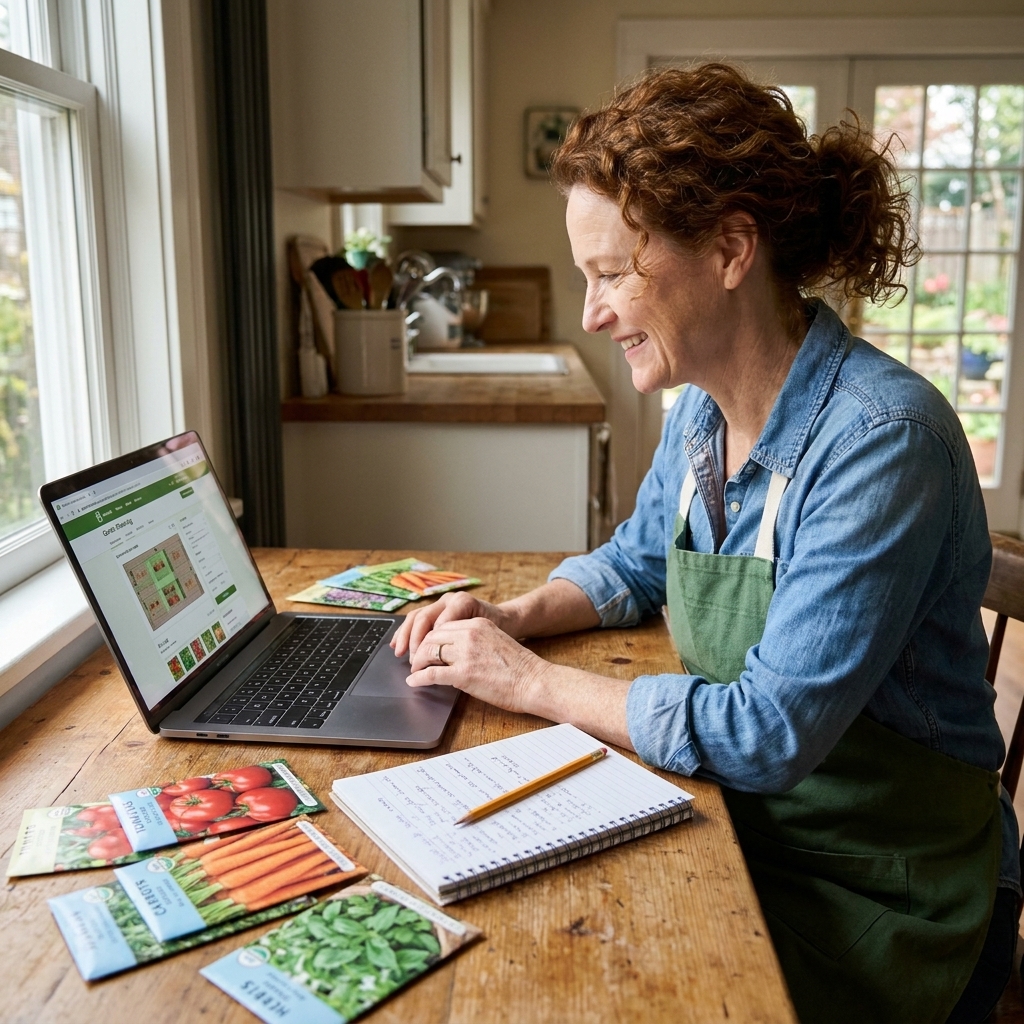
GrowVeg is one of the most full-featured garden planners out there for vegetable growers. It is especially handy once you move beyond a few pots on the patio into raised beds, multiple beds, or a proper kitchen garden layout.
What I love for vegetables
- Visual garden plan that helps you see spacing and layout at a glance.
- Planting schedule tied to frost dates: you set your frost-date settings, and the planner builds sowing and planting windows around that.
- Rotation-friendly history: past plans help you avoid planting tomatoes in the exact same spot year after year.
- Succession planning: it is easier to see calendar crunch points when you lay out multiple rounds.
Notifications
Think of GrowVeg as great for planning and less about push alerts. It generates schedules, task lists, and month-by-month guidance inside the tool and in print-friendly views. If you want phone notifications, pair GrowVeg with Google Calendar or Apple Calendar using the GrowVeg schedule as your source.
Export and backup
- What you can save: GrowVeg has long offered print-friendly plan views and schedules. Exactly what formats are available (print view, PDF saving via your browser, downloads, or images) can change, so confirm current print and download options if export matters to you.
- Backup: your account keeps plans available across logins.
- Portability reality check: GrowVeg is excellent at producing clean plans and schedules. If you need structured exports (like CSV) of every entry, verify whether that exists in the current version before you invest your whole garden brain in it.
Who should skip it: anyone who wants quick mobile journaling with photos, or who requires guaranteed spreadsheet-style export of everything they enter.
My tip: start by mapping only your main-season beds. Once that feels easy, add containers, herbs, and perennial areas.
2) Planter
Snapshot: a mobile app that shines as a visual bed layout tool, with planting guidance and companion planting suggestions layered in. Main limitation: it is strongest for layout and planning, not long-term portability of your data.
Best for: raised bed gardeners who want a clear layout tool plus straightforward planning help.
Not for: gardeners who want a spreadsheet-friendly export or a multi-year, report-heavy garden log.
Pricing: free tier available, with an optional subscription. App store pricing and tiers change, so confirm the current offer in your store listing.
Login: you can often explore without signing in, but sync and backup typically require an account.
Offline use: often limited or partial. You may be able to view existing bed plans, but syncing, plant database lookups, and saving across devices generally require a connection.
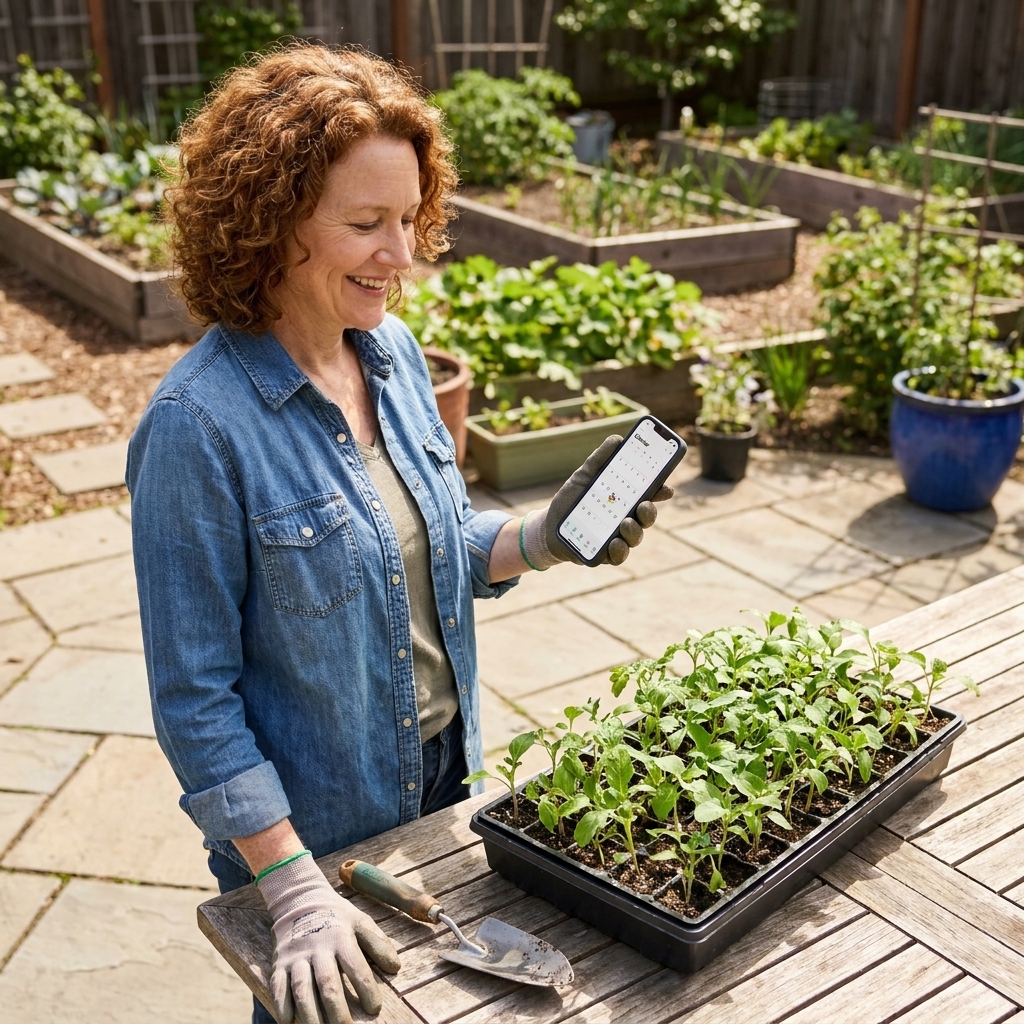
Planter is popular for good reason. It makes planning feel approachable, and it is especially appealing if you like building a bed plan visually. If you are the type who sketches beds on graph paper, Planter scratches that same itch, just cleaner.
What stands out
- Bed layout focus: great for small-space growers and raised bed grids.
- Spacing help: useful when you want the app to sanity-check crowding before you plant.
- Planting guidance: Planter can provide sowing and planting windows, but the way it determines dates depends on your setup and the current version. Some setups use a chosen region, hardiness zone, or ZIP code style input rather than precise GPS. Always sanity-check against your local frost timing.
Notifications
Planter includes an in-app task list and reminders, but reminder features can be tied to certain tiers and your device notification settings. If reminders are central to your workflow, test a couple during the trial or free tier and confirm they arrive the way you want on your phone.
Export and backup
Planter is built around in-app planning. Sharing bed plans is typically supported through your phone’s share options, often as an image or a shareable view. The exact output can differ between iOS and Android and may change with updates.
What tends to be limited is a clean, bulk export of your full season history, varieties, notes, and dates. If that matters to you, plan to do your own end-of-season summary in a spreadsheet.
Who should skip it: gardeners who want a spreadsheet-friendly export, or who want deep journaling with robust multi-year reporting.
My tip: use Planter for your bed map and spacing, then keep one running note per bed (even in your phone Notes app) for pest pressure and harvest quality.
3) From Seed to Spoon
Snapshot: a mobile app built around planting dates by location, crop info, and seasonal guidance. Main limitation: it is not primarily a bed-mapping tool.
Best for: gardeners who want planting dates that match their area and a friendly what to do this month guide.
Not for: gardeners who want detailed bed mapping or guaranteed exports for multi-year recordkeeping.
Pricing: typically free to download, with optional paid features. Confirm current pricing and what is included on your platform.
Login: you can usually browse without a login, but saving your garden and syncing across devices typically requires an account.
Offline use: often limited or partial. If you rely on it as your primary guide, assume you will want a connection for the most accurate, up-to-date crop info and account syncing.
From Seed to Spoon is particularly helpful if you want planting dates that feel tied to where you live. It is the kind of tool that can keep you moving through the season when decision fatigue hits.
Why veggie growers like it
- Planting windows based on your area: you choose your location, and it generates planting windows around that.
- Seasonal prompts: nudges so you remember fall planting, not just spring.
- Confidence boost: it reduces am I late anxiety for common vegetables.
Notifications
The app can include in-app to-do and reminder features, but what is included may vary by tier, platform, and the current version. If reminders are central to your workflow, verify whether they are part of the free experience on your device before you build your whole season around them.
Export and backup
If you use an account, that generally helps when you change phones. What is saved and how fully it syncs can vary by version and plan, so it is worth testing early.
Bulk export is limited, and any true export option (if available) can be version-dependent. If you are building a multi-year dataset, plan to copy your key dates and variety notes into a spreadsheet at season’s end.
Who should skip it: gardeners who want detailed bed mapping, or anyone who wants guaranteed spreadsheet exports for every record.
My tip: add one personal rule: always adjust tender crops (tomatoes, peppers, basil) based on soil temperature and nighttime lows, not only the date on the calendar.
4) Gardenize
Snapshot: a garden journal that is excellent for photos, notes, and keeping a record of what happened in your garden. Main limitation: it is not designed to be your primary planting calendar and notification engine.
Best for: gardeners who want a digital garden journal with photos, notes, and long-term records.
Not for: gardeners who mainly need planting schedules, frost-date logic, and consistent push reminders.
Pricing: free tier available, with an optional subscription. Confirm current pricing and feature differences on your platform.
Login: you need an account to save and sync your journal.
Offline use: often limited or partial. You may be able to view existing entries, but syncing photos and loading anything account-related typically requires a connection.
Some of us are planners. Some of us are trackers. If you love looking back and saying, That was the year flea beetles tried to take my eggplant, Gardenize can be a great fit. It leans into documentation: what you planted, where, and how it performed.
Strong points
- Photo-friendly journaling: great for pest ID, progress photos, and this trellis worked proof.
- Organized notes: so you can actually find last year’s observations.
- Useful beyond vegetables, but it really shines when you track varieties and dates.
Notifications
Gardenize is a journal first. Reminder features, if available to you, can be lighter than what you get in a dedicated calendar app and may vary by plan, platform, and device notification settings. If you need consistent nudges, pair Gardenize with Google Calendar or Apple Calendar for timing.
Export and portability
Gardenize is built for in-app records with account access across devices. Export options can differ by plan and platform, and web versus mobile can have different capabilities. If export is a must-have for you, verify what you can download in your current version before you commit years of notes and photos.
Who should skip it: gardeners who mainly need a planting schedule and phone notifications, or anyone who wants a complete, photo-inclusive export of every record.
My tip: make a habit of adding notes on three dates only: planting day, first harvest, and final harvest. That alone will improve your timing decisions next season.
5) Google Calendar (or Apple Calendar)
Snapshot: a cross-device calendar with excellent notifications and repeats. Main limitation: no bed mapping and no crop database, so you supply the gardening knowledge.
Best for: gardeners who want reliable notifications, repeating tasks, and an easy way to share plans with family members.
Not for: gardeners who want the app to calculate planting windows from frost dates and crop data automatically.
Pricing: free.
Login: yes, via your Google or Apple account.
Offline use: on-device apps generally allow basic viewing and editing offline, then sync when you reconnect. Web access does not work offline.
This one is not a garden app, but it might be the most practical option if you want something that never gets abandoned. A calendar you already use is a calendar you will actually check.
How to set it up
- Create a separate calendar called Garden so garden tasks do not clutter your life calendar.
- Add repeating events for weekly seedling checks, watering audits, and pest scouting.
- Use color coding: indoor sowing, outdoor sowing, transplanting, maintenance, harvest.
- Set notifications 7 days before transplant windows so you have time to harden off.
Example: tomatoes
- Start tomatoes indoors (based on your usual last frost date and your variety)
- Pot up tomatoes (often a couple weeks after sprouting, or when they have true leaves and roots are filling the cell)
- Harden off tomatoes (7 to 10 days before transplanting)
- Transplant tomatoes (when nights are reliably warm and soil has warmed up)
- First trellis check (about 1 to 2 weeks after transplant)
Export and backup
Google Calendar lets you export calendars as .ics files from the web version. Apple Calendar portability is often handled through iCloud sync and calendar sharing, especially across Apple devices. In some Apple contexts (notably macOS), you can also export calendars as .ics, while iOS export options can be more limited.
Who should skip it: gardeners who want the app to tell them what to plant when, with frost-date logic and a crop database built in.
My tip: when you plant something, immediately add the next-step event too. Example: when you sow tomatoes, also add pot up tomatoes and harden off tomatoes. Future-you will feel very loved.
Why export matters
Export is one of those boring details you only care about when you really care about it. Here is what getting your data back can mean in real life:
- Bed plans you can save: a printable view or file you can keep in a folder year to year.
- Plant lists you can move: a spreadsheet-style list so you are not retyping varieties and dates.
- Journal entries you can keep: notes and photos you can back up outside the app.
In plain language: planning tools tend to export plans well (often as print-friendly views), journaling tools tend to keep your records inside your account, and spreadsheets are still the gold standard if you want total control.
Privacy basics
If you are going to log years of garden notes, it is worth thinking about privacy like a practical gardener, not a tech lawyer.
- Location: many tools work fine with a ZIP code, city, or region. If an app asks for precise GPS, decide whether you want that convenience, and consider turning off location access after setup.
- Photos and notes: if you use an account so you can sync across devices, assume your photos and notes may be stored on the company’s servers. That is not automatically bad, but it is a real tradeoff.
- Data retention: before you commit, look for a clear account deletion option and whether the app offers any kind of data download. If it does not, plan for your own end-of-season backup.
Scaling up
If you garden in more than one place, or you are running multiple beds with rotations and successions, here is the practical reality:
- GrowVeg tends to shine as complexity increases because it is built around layouts, rotation, and season plans. It is also naturally multi-year because you can compare past plans.
- Planter is great for visual bed-by-bed planning, especially in raised beds, but confirm how it handles multiple gardens, multiple seasons, and backups if you are planning to scale up.
- From Seed to Spoon is strongest as a seasonal guide and planting-date companion, not as a multi-plot mapping system.
- Gardenize scales beautifully for multi-year notes and photos, which is exactly what you want when you are trying to remember if that variety was amazing or just fine.
- Calendars and spreadsheets scale as far as you are willing to stay consistent with naming and organization.
Honorable mentions
If you are the type who likes to compare a few more options before committing, two more names worth checking out are SmartGardener (planning-focused) and Seedtime (schedule-focused). Features and pricing shift, so treat these as extra tabs to open, not endorsements carved in stone.
Spreadsheet options
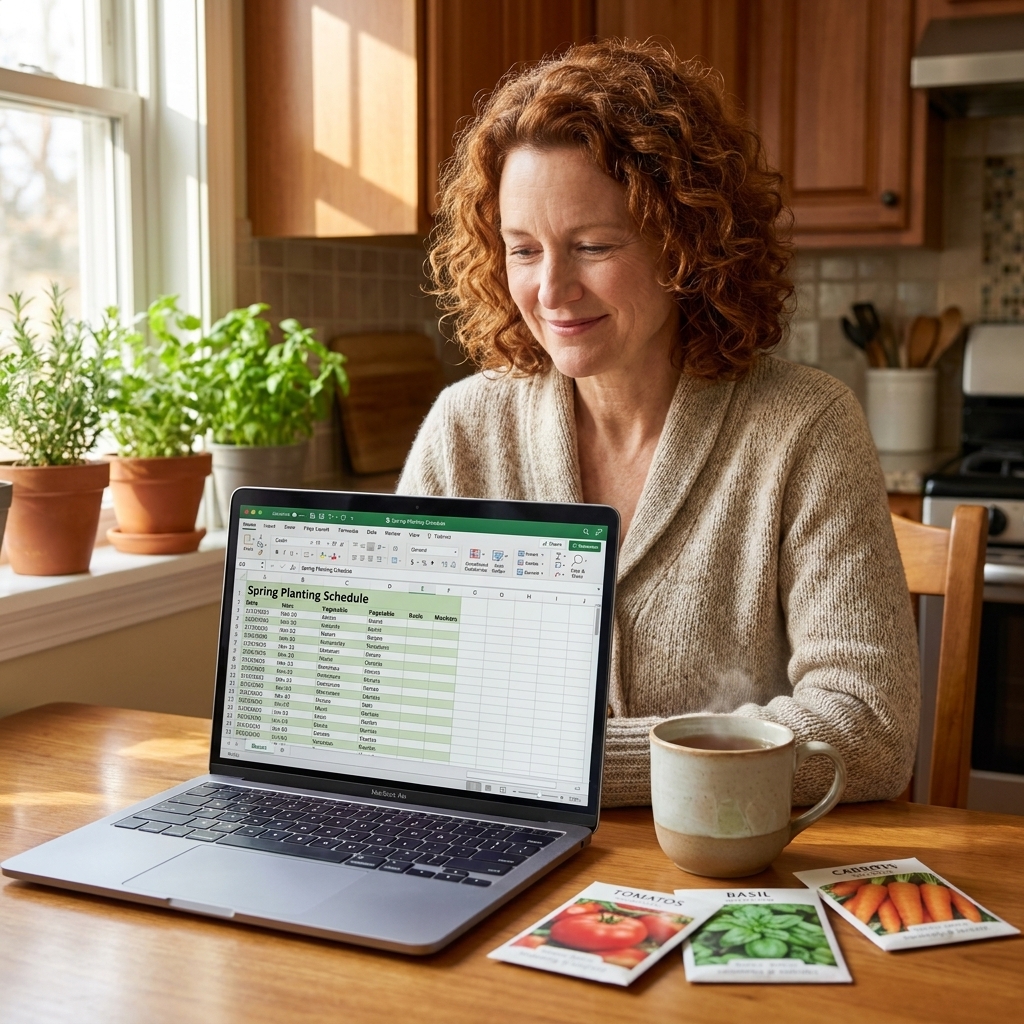
If apps make you feel boxed in, a spreadsheet is freedom. You can build exactly what you want and keep it forever. Two easy ways to do this:
Option A: Planting dates
Create columns like:
- Crop
- Variety
- Bed or location
- Start indoors date
- Direct sow date
- Transplant date
- Expected first harvest (date)
- Notes (germination %, pest issues, flavor, yield)
This is my favorite for raised beds because you can sort by bed to see what is going where.
Option B: Successions
If you grow steady salad greens or repeat plantings, make columns like:
- Crop
- Interval (every 10 days, every 2 weeks)
- Number of rounds
- Round 1 sow date
- Round 2 sow date
- Round 3 sow date
- Stop date (heat, frost, bolting risk)
My tip: put your typical spring last frost date and fall first frost date at the top of the sheet. Most of your planning decisions hang on those two numbers.
How to choose
If you are stuck deciding, ask yourself these three questions:
- Do I need bed mapping? If yes, start with GrowVeg or Planter.
- Do I forget timing tasks? If yes, choose a tool with push notifications, or pair any planner with Google Calendar or Apple Calendar.
- Do I want better results next year? If yes, pick something with easy note-taking and photos like Gardenize, or commit to a simple spreadsheet journal.
And please hear this from someone who has tried to be organized in about twelve different ways: the best system is the one you will still be using when the zucchini is exploding and the kids are begging for dinner.
A simple workflow
If you want a low-stress system, here is what I recommend to beginners and busy gardeners:
- One place for layout: Planter or GrowVeg, or even a single bed sketch saved as a photo.
- One place for notifications: Google Calendar with repeating tasks.
- One place for notes: Gardenize, or a single running note per season in your phone.
This one-job-per-tool approach prevents the common problem of trying to do everything in one app, then quitting when it gets fiddly.
FAQ
Are garden planning apps accurate for my area?
They are a good starting point, especially for frost timing and general sowing windows. But conditions matter. Wind, shade, and heat reflecting off pavement can shift timing, so adjust based on what your garden is doing, not just the recommended week.
What is the best option for raised beds?
If you want to map beds and plan spacing, GrowVeg and Planter are strong choices. If you just want notifications, a dedicated Garden calendar in Google Calendar works wonderfully alongside a simple bed sketch.
Can I plan succession planting with these tools?
Yes. GrowVeg and a spreadsheet are especially good for successions because you can plan multiple rounds ahead. Any app can work if you schedule repeating notifications like sow more lettuce every 10 to 14 days during your cool season window.
What should I track if I only track a few things?
Track planting date, variety, first harvest date, and a quick note on performance. Those four items will dramatically improve your timing and variety choices next year.